
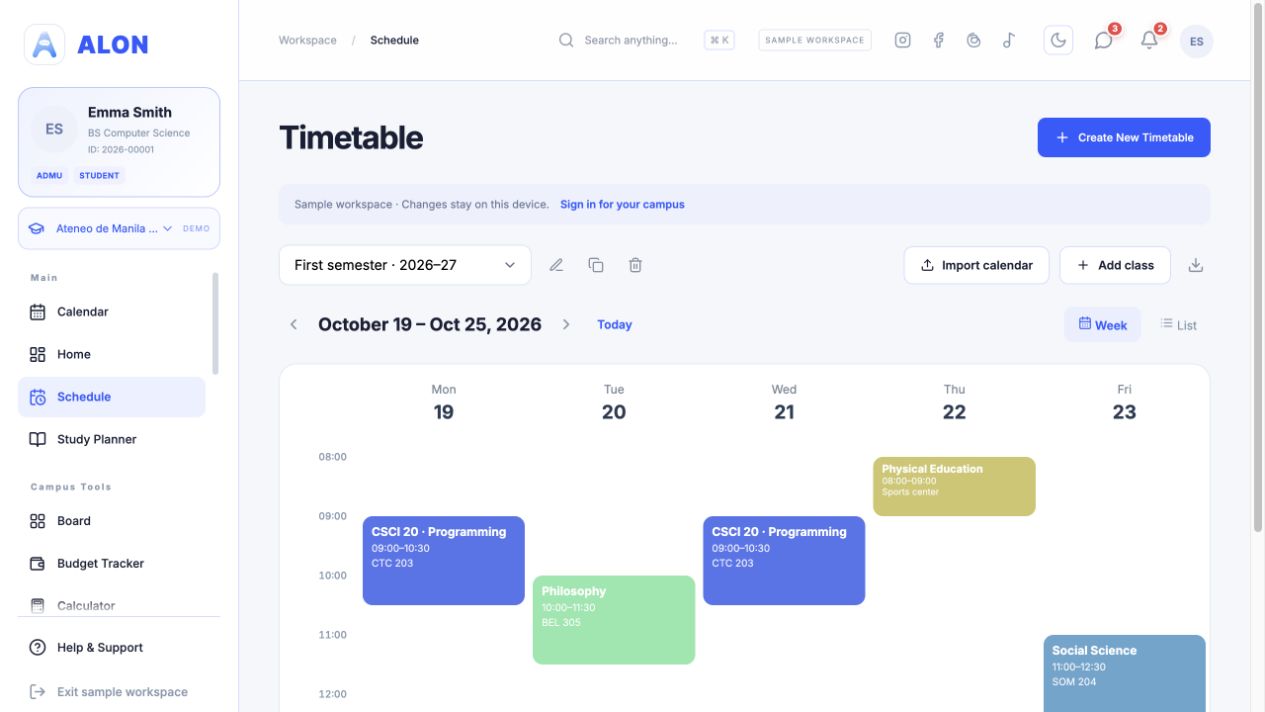
Create a named timetable
Open Schedule and choose Create New Timetable. Give it a name that distinguishes it from later semesters, such as “First semester 2026–27”. Select the days you want to see; Monday through Friday are selected by default. Then save.
If you make another timetable later, use the selector at the top of Schedule to switch between them. Check the selected name before adding classes so a new subject does not land in the wrong semester.
Use “First semester 2026–27” for current classes and a separate “Summer term” timetable only if you really need a second schedule. A timetable's active days determine which columns appear in its week view.
Add every meeting time for a class
Choose Add class, enter the class details, then set a day, start time, and end time for its first meeting. If that subject meets again on another day, choose Add another time slot inside the same class form. You can give each slot its own room or meeting link and choose its repeat pattern.
- Enter the subject. Use a name you will recognize in the week view, such as CSCI 20.
- Enter each day separately. Add Monday 09:00–10:30, then another slot for Wednesday 09:00–10:30 if those are the actual meeting times.
- Check the times, then save. ALON requires each end time to be later than its start time and does not accept an identical schedule twice.
If a class overlaps one already entered, ALON asks before saving the overlapping time. Check both schedules before confirming; the warning does not tell you which course information from your school is correct.
Review the week and edit changes
After saving, look across the weekly timetable and compare each block with your school's class schedule. Use the week controls or Today to return to the current week. A class's repeat pattern can affect which week displays it.
If the room or meeting time changes, open that class and update its relevant slot. You can also edit the timetable name or visible days. The Duplicate timetable control is for creating a separate copy, not for correcting one class.
Before deleting: the delete confirmation covers the timetable and its associated classes, tasks, exams, resources, and events. Switch to the right timetable and review that warning carefully.
Save a timetable image
On the timetable screen, choose Save timetable as PNG to download an image of the selected week. This is useful as a quick reference, but it will not update when you later edit a class. Return to ALON for the current version.
Calendar and Study Planner also offer calendar export as an ICS file. That is a separate calendar workflow; a PNG is a picture of the timetable, while an ICS file carries calendar events for import into another calendar.
If a class is missing or misplaced
- Check the timetable selector first. Classes belong to a specific timetable.
- Check the day and start/end times in the class form, then check the week shown on screen.
- If a class repeats only on certain weeks, check its repeat setting before adding a duplicate.
- If you are exploring the sample workspace, its example data is separate from your signed-in account. Sign in to work with your own school timetable.
Need help with account access or a feature that does not load? Visit ALON Support.