
Add the place you keep your money
Open Budget Tracker, go to the Accounts tab, and add an account such as “Cash on Hand” or “School Wallet”. Choose its type and enter an opening balance: the amount you had before recording transactions in ALON. You need an account before you can add a transaction.
You may create separate accounts for cash and a wallet if that helps you understand where money sits. These are records you maintain yourself. ALON does not read your bank balance, connect to your wallet provider, or send money between accounts.
Changing an account's opening balance also changes its displayed current balance. If the balance seems wrong, check the opening amount and your recorded transactions before editing it.
Choose a monthly spending limit
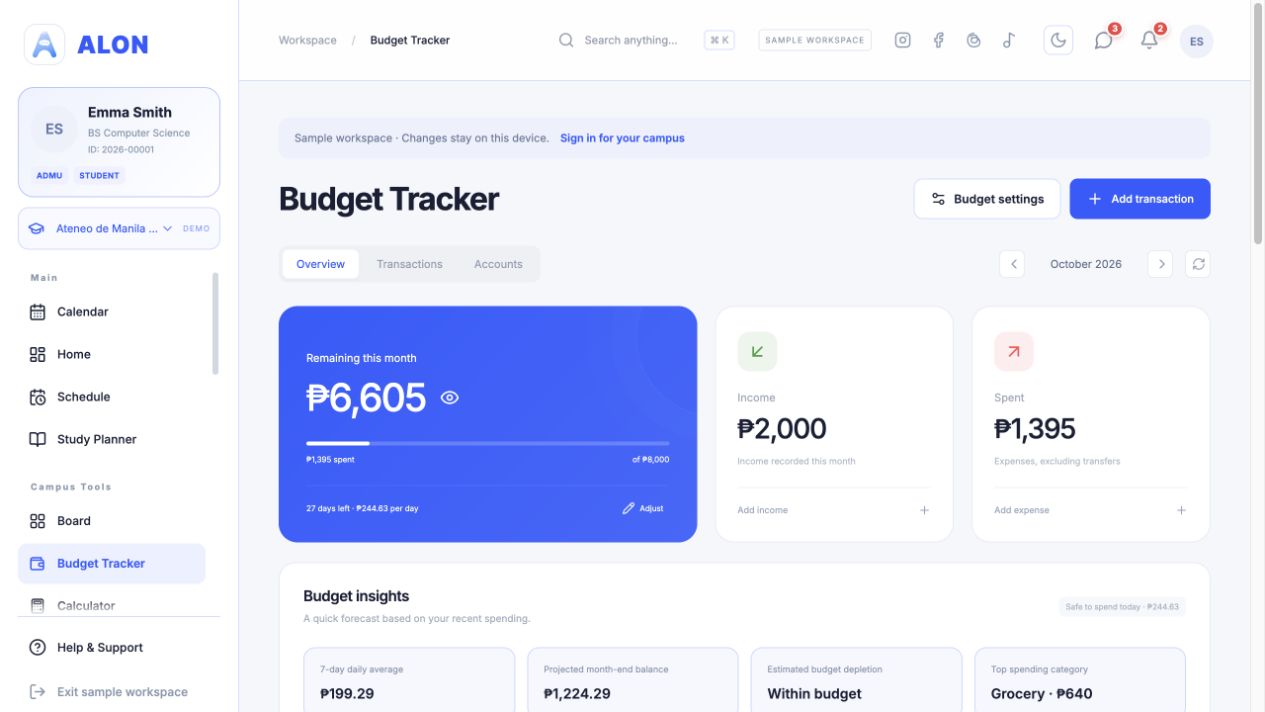
In Overview, select Set budget or Adjust. Enter a monthly budget and, if useful, a daily allowance. You can apply the setting to all months or keep it for the selected month. Optional category budgets set a separate limit for spending areas such as Food.
Overspending warnings can alert you when a category approaches or exceeds its limit. They are based on the entries you record, so missed expenses make the overview less accurate. The budget amount is your target for spending; it is not the same number as the combined balance of your accounts.
If you want to spend no more than ₱5,000 this month, enter ₱5,000 as the monthly budget. You could also set a Food category limit of ₱2,000. These are planning limits; your cash or wallet opening balance is entered separately.
Add income, expenses, and transfers correctly
- Record money received. Choose Add income, select an account, enter the amount and date, and choose an income category.
- Record money spent. Choose Add expense, select the account it came from, enter the amount and date, and choose the matching spending category. You can add a short note.
- Move money between your own accounts. Choose Transfer and select different source and destination accounts. A transfer updates account balances but is not counted as new income or spending.
For example, withdrawing ₱500 from a wallet into cash is a transfer, not a ₱500 expense. Buying lunch with that cash is the expense. Recording both as expenses would overstate what you spent.
Read the monthly overview
The Remaining this month amount is the monthly budget minus recorded expenses for the selected month. Income and transfers do not raise that spending limit. The overview also shows income, spending by category, and an estimate of how much is left per day; these figures depend on what you entered.
| Record | Amount |
|---|---|
| Monthly budget | ₱5,000 |
| Food expenses | −₱1,250 |
| Transport expenses | −₱300 |
| Remaining spending budget | ₱3,450 |
Use the month arrows to review another month. The overview is not a bank statement: your account balances use their opening amounts and recorded transactions, while the remaining budget uses the monthly spending limit and expenses.
If a total looks unexpected
- Check which month is selected and whether the transaction date falls in that month.
- Check whether you marked an item as Expense, Income, or Transfer. Transfers do not count toward monthly spending.
- Review the source account and its opening balance if the account balance looks wrong.
- If an expense category warning is missing, check that category's limit and the warning setting.
- If you are exploring the sample workspace, its example entries are separate from your signed-in account.
Need help with account access or a feature that does not load? Contact ALON Support.